
Claude Code vs Cursor 2026: Which AI Coding Tool Is Better?
Claude Code vs Cursor compared head-to-head. Terminal vs IDE, pricing, speed, code quality, and which one actually ships for solo founders and small teams.
Just 18 months ago, domain expertise and customer demand weren't enough—you needed a technical co-founder to build your SaaS.
Today, AI coding agents change everything. You can build it yourself. But first, you need to pick the right tool: one that matches how you think about building products.
Claude Code and Cursor are two of the most powerful AI coding tools available. Both can build your product, but they work in fundamentally different ways. This post breaks down how each tool works so you can pick the one that fits your workflow and start shipping.
#How They Actually Work
Think about a coworker who got the job done—but in a completely different way than you. The constant friction slowed you both down.
AI coding agents work the same way. Pick one that doesn't match your workflow, and you'll fight it every step. Pick the right one, and you'll ship faster.
#Claude Code
Claude Code runs in your terminal (the text-based interface where you type commands) or inside your text editor. You describe what you want in plain English. Claude makes changes. You review them. You iterate.
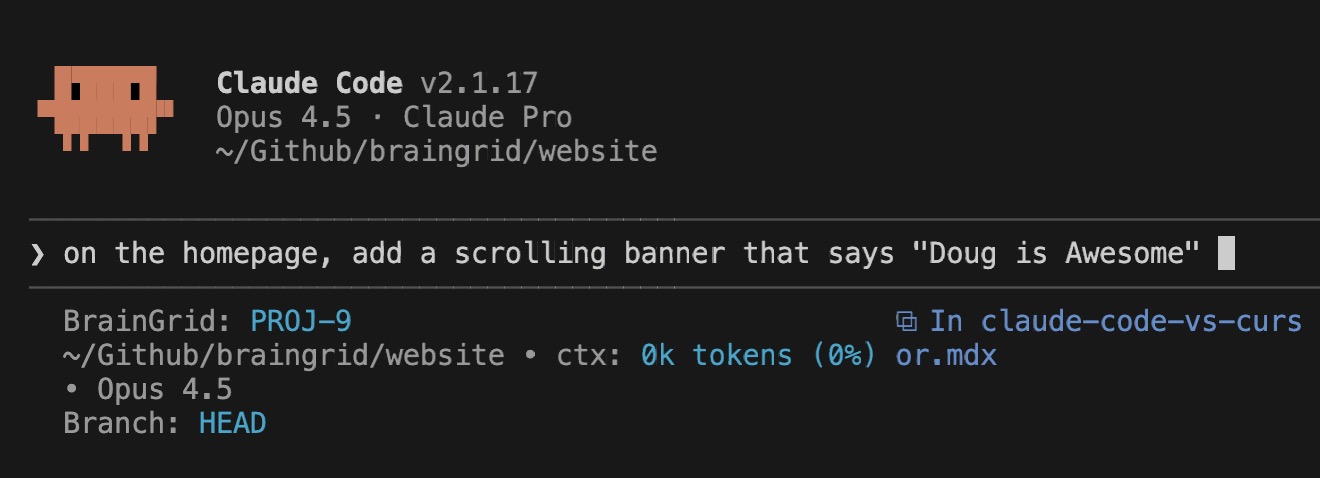
Think of it as: Pair-programming with a senior developer who reads your specs and builds features.
Pair programming with Claude can be awesome, but other times it feels very slow. When building larger features that require a lot of code, Claude feels very fast - it generates features in minutes to hours that would take me days. However, for smaller quick fixes, it feels like Claude moves very slowly, and the updates take minutes instead of just seconds.
#Cursor
Cursor is a complete code editor (an IDE—integrated development environment) with AI built in. As you type, it predicts what's coming next and autocompletes entire blocks of code. For bigger features, use the chat interface to describe what you want.
Think of it as: Writing code yourself, but with AI superpowers.
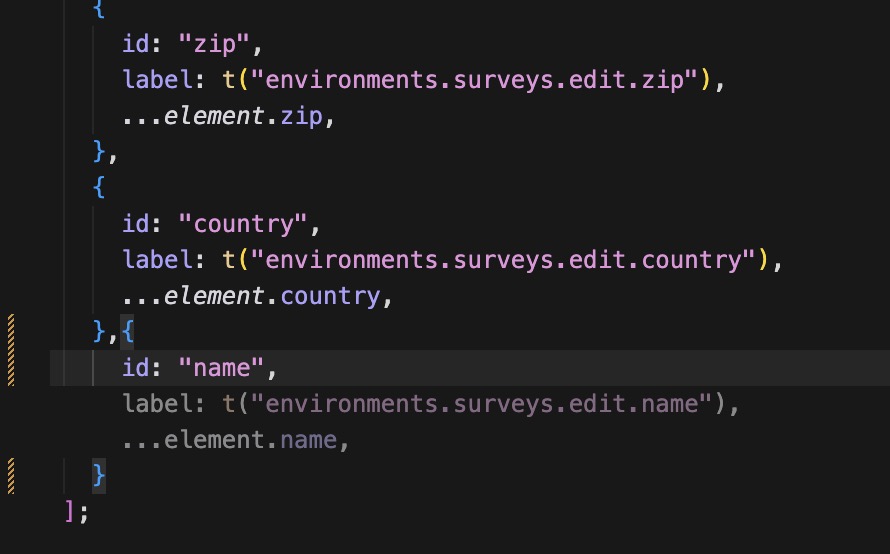
As a coder, I find that the autocomplete does help me create functions and features quickly. By anticipating what I am trying to build, I can quickly review the proposed code from Cursor, and with just a tab, the code is inserted. Cursor excels at the quick fixes that feel very slow with Claude. The downside is that feature creation through the Cursor chat does not feel quite as robust as building features with Claude Code. Feature code generated by Cursor often needs more iterations to get right (but that could also be poor prompting on my part.)
#Which Should You Choose?
There is no universal answer - these tools are not one-size-fits-all. The right tool is the one that best matches your needs, and the way you prefer to code.
- Cursor: You're comfortable writing code and want AI to accelerate you.
- Claude Code: You think in features and specs, not code syntax.
#Level Up with Specs: BrainGrid
Both tools work better when you give them clear instructions. On software teams, a product manager creates specs and breaks them into tasks. As a solo founder, you need to do this yourself—or use AI to help.
BrainGrid acts as your product management AI. It turns vague ideas into detailed requirements and prompts that your agents can execute. Better prompts mean fewer iterations and faster shipping.
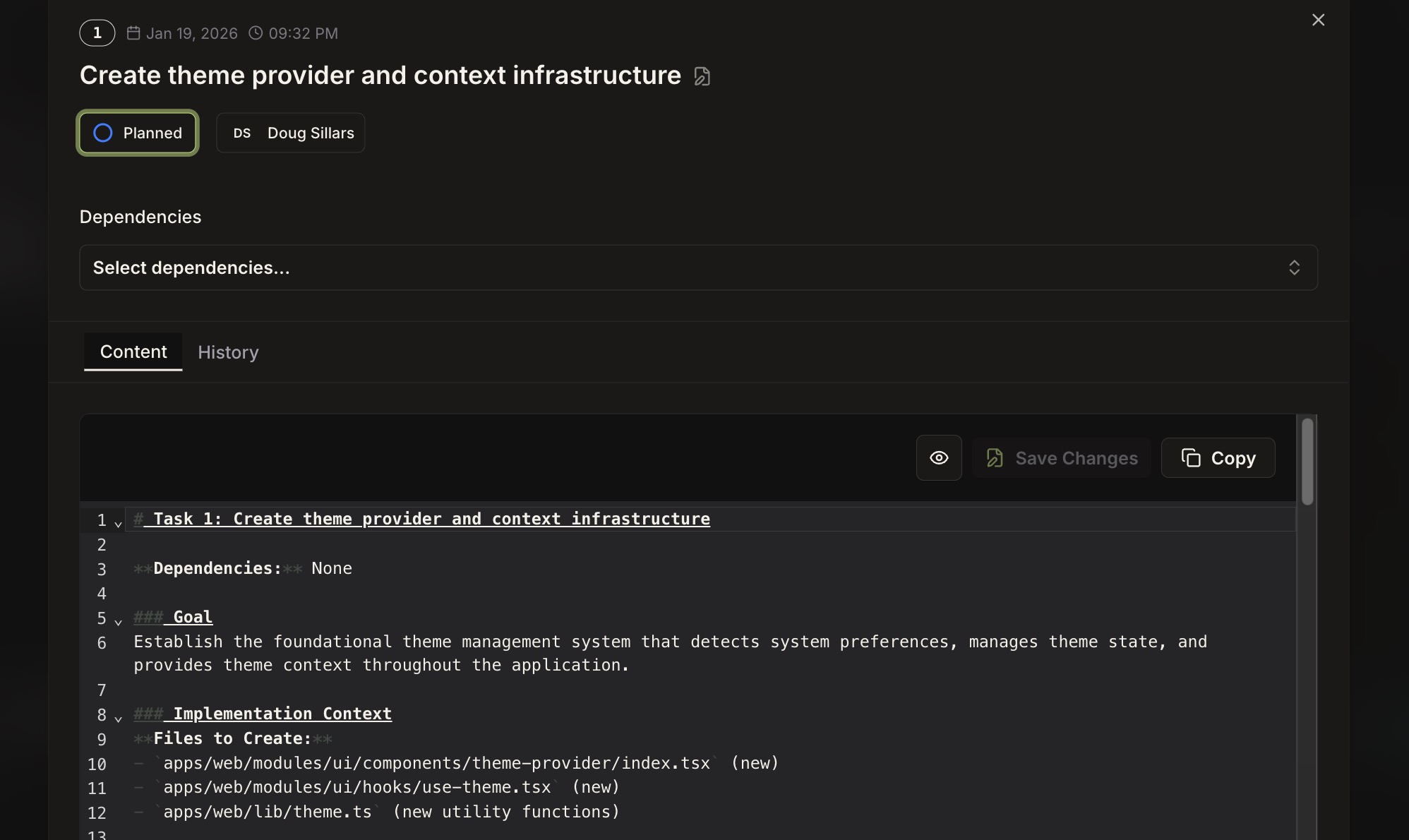
BrainGrid integrates with both Cursor and Claude Code.
#Learning Curve: What You Actually Need to Learn
Neither tool builds everything perfectly on the first try. You'll need to learn some technical basics—but far less than traditional coding requires.
#Git Basics (Essential for Both Tools)
Git tracks changes to your code. You'll need to learn:
- Branches: Think of these as parallel workstreams. Keep each feature in its own branch until it works, then merge it into your main codebase.
- Commits: Snapshots of your code at a specific point. If something breaks, you can roll back.
- GitHub: A cloud backup for your code. Push your changes regularly so you never lose work.
These skills take days to learn, not months.
#Getting Started with Claude Code
You'll work with Claude Code in your terminal, typing commands and prompts. As you learn slash commands like /clear (reset the conversation) or /model (switch AI models), you'll feel like a hacker.
Week 1: Feels clunky. You're typing prose into a black screen and waiting for responses.
Week 2: Feels effortless. You realize you just shipped 3 features without touching code directly.
#Starting with Cursor
Cursor feels like a traditional code editor—but supercharged. As you type, it predicts what's coming next and autocompletes entire functions. For bigger features, use the chat interface to describe what you want.
Week 1: Feels empowering—autocomplete makes you feel like a "real developer."
Week 2: You're moving fast on small changes, but bigger features feel harder to coordinate across files.
#Best Practices for Getting Started
No matter which tool you choose:
- Start small. Build one simple feature first. Once that works, tackle larger tasks that span multiple files.
- Review every change. Both tools let you accept or reject changes. It's easier to reject and try again than to fix broken code later.
- Don't blindly accept. If you don't understand what the AI wrote, ask it to explain. You'll learn faster and catch bugs earlier.
#When to Use Each Tool
Both tools can handle almost any coding task. But each has distinct strengths.
Cursor excels at:
- Quick UI tweaks and bug fixes (seconds, not minutes).
- Jumping between files to make small edits.
- Rapid iteration when you're hands-on with the code.
Claude Code excels at:
- Building new features from scratch.
- Complex refactors that touch many files.
- Deep reasoning about architecture decisions.
#The Hybrid Approach
Many builders use both: Claude Code for "thinking work" (new features, refactors) and Cursor for "fixing work" (bugs, UI polish). There's no rule saying you can't use both.
#Pricing: What You'll Actually Spend
Neither tool will break the bank. Both Cursor and Claude Code start at $20/month for Pro plans.
#What You Get for $20/Month
Both subscriptions include a monthly allocation of AI usage. Once you hit the cap, you can either pay for overages or wait for the reset. Set a monthly spending cap in your settings to avoid billing surprises.
Heavy users may hit $100-200/month. Start with the Pro plan and only upgrade if you consistently hit limits.
#How Usage Works
Claude Code: Usage resets in five-hour sessions. Hit your limit? Either pay for more or wait for the session to reset.
Cursor: Usage resets monthly. Deplete your allocation mid-month and you'll pay overages or switch to smaller models.
#Tips to Maximize Usage
Cursor: Use "Auto" mode—it picks cheaper models for simple tasks and reserves powerful models for complex work.
Claude Code: Switch to cheaper models (like Haiku) for simple tasks. Save the expensive models for features that need deep reasoning.
#Connecting to External Systems (MCP)
The problem: When AI writes code that talks to your database or API, it has to guess. It creates placeholder code like SELECT * FROM users_table_maybe because it doesn't know your actual table names. You waste time fixing these placeholders.
The solution: MCP (Model Context Protocol) connects your AI agent to external systems—databases, APIs, documentation, task managers. Now the AI knows your actual data structure and writes working queries the first time.
Both tools support MCP. For setup details, see our posts on Claude Code & MCP and Cursor MCP.
#Quick Setup Tips
Claude Code: After installing an MCP, restart Claude Code. Changes don't take effect until restart.
Cursor: MCPs can be installed in one click through the marketplace. Check your settings to ensure your desired MCP is enabled.
#BrainGrid MCP
BrainGrid offers an MCP that lets both tools read your requirements and tasks directly. See the installation docs to get started.
MCP integrations reduce "context switching tax"—the time spent copy-pasting specs, docs, and data between tools. This saves hours per week for active builders.
#Common Pitfalls and How to Avoid Them
These pitfalls apply to all AI coding tools. Avoiding them saves days—if not weeks—of frustration.
#1. Blindly Accepting AI Code
The risk: You accept 200 lines of code without reading them. Three days later, something breaks and you can't figure out why.
The fix: Read every change before accepting. If you don't understand something, ask the AI to explain it. Ten minutes of review saves hours of debugging.
#2. Vague Prompts
The risk: You say "add a payment feature." The AI builds something that's missing error handling, webhook support, and refund logic. You ship it, payments fail silently, customers churn.
The fix: Write detailed prompts. Use BrainGrid to turn vague ideas into specific requirements with clear acceptance criteria.
#3. Skipping Tests
The risk: You ship a feature, it works. You ship another feature, the first one breaks. You don't notice until a customer reports it.
The fix: Ask the AI to write tests with every feature. Add to your prompt: "Also write tests for happy path, error cases, and edge cases."
#Claude Code Pitfalls
The terminal has a learning curve. Keep a cheat sheet of common commands nearby until they become second nature.
#Cursor Pitfalls
Autocomplete is addictive. When Cursor suggests 15 lines to complete your function, stop and read them. Make sure it's actually doing what you want.
#Which Tool Should You Choose?
Here's how to decide:
Choose Claude Code if:
- You think in product specs, user stories, and requirements.
- You'd rather describe outcomes than write code.
- You want to build features from scratch with detailed prompts.
Choose Cursor if:
- You've written code before (even basic HTML or Python).
- You prefer hands-on control and seeing code as you build.
- You want autocomplete to accelerate your workflow.
Still unsure? Start with Claude Code for one week. If you find yourself wanting to "just fix this one line" faster, add Cursor for quick edits.
#Your Next Step
The right tool should feel like it's working with you, not against you. Pick one, try it for a week on a real feature, and see how it fits.
Both tools come with pros and cons: Cursor's fast autocomplete, but less of a feature development tool. Claude Code is great at building features, but feels very slow in iterating on small changes.
Whichever tool you choose, start with clear requirements. Both Claude Code and Cursor produce better results when they know exactly what you're trying to build. BrainGrid can help you turn vague ideas into detailed specs that your AI agent can execute.
#FAQ
#Is Claude Code better than Cursor?
Neither is objectively "better"—they're different tools for different workflows. Claude Code excels at spec-driven, conversational development. Cursor excels at inline editing and rapid iteration. Choose based on how you think about building, not which has more features.
#Can I use both Claude Code and Cursor?
Yes. Many builders use Claude Code for new features and architectural changes, then switch to Cursor for bug fixes and UI polish. This requires maintaining both setups but maximizes each tool's strengths.
#How much do Claude Code and Cursor cost?
Both start at $20/month for Pro plans. Heavy users may exceed the base allocation—set a spending cap in your settings to avoid surprises. Start at $20 and only upgrade if you consistently hit limits.
#Do I need to know how to code to use these tools?
No—but you'll learn basics as you go. You'll pick up git commands, terminal navigation, and code structure. If you already code, Cursor will feel more natural. If you don't, Claude Code's conversational style is easier to start with.
#Which tool is faster for building an MVP?
Starting from zero? Claude Code can take your requirements and build an MVP. Cursor is faster at adding to existing codebases—which you'll have as soon as your MVP exists.
#Can I switch from Cursor to Claude Code (or vice versa) later?
Yes. Neither tool locks you in. Both read your codebase and build from what's there. You can use them simultaneously.
#Should I start with the free tier or paid plan?
Cursor's free plan runs out fast. Claude Code doesn't have a free tier. Both have Pro plans at $20/month—for the cost of a nice lunch, start with the paid plan and move faster.
#How do I know which tool is right for me?
Think in product specs and user stories? Try Claude Code. Prefer hands-on control and inline editing? Try Cursor. Test both for one week each on a small project, then commit to one for 30 days.
Keep Reading



Ready to build without the back-and-forth?
Turn messy thoughts into engineering-grade prompts that coding agents can nail the first time.
Re-love coding with AI