
Claude Code MCP Servers: Setup Guide + Best Servers (2026)
Add MCP servers to Claude Code in minutes. Top 10 servers ranked (Supabase, GitHub, Figma, BrainGrid) plus troubleshooting for common config issues.

You're pasting logs, docs, or snippets of data into Claude Code. Again.
Every question about your system means manual context. Tab switching. Re-explaining decisions. Copying the same information from one tool to another. It works - but the friction adds up fast.
This isn't a Claude Code problem. It's a context problem.
Out of the box, Claude Code only knows what's in your repository and what you paste into chat. Your database, designs, GitHub PRs, APIs, and internal docs don't exist unless you explain them — repeatedly.
What if Claude Code could query your database, read designs, and understand GitHub on its own?
That's exactly what Claude Code MCP enables — and it takes about 5–10 minutes to set up.
MCP (Model Context Protocol) lets Claude Code connect directly to the rest of your stack through MCP servers. Instead of guessing schemas, Claude can ask. Instead of placeholders, it fetches real data. Remove the context bottleneck, and Claude Code finally feels like the agent you expected.
#What is MCP in Claude Code?
MCP (Model Context Protocol) is an open standard that lets AI tools like Claude Code connect to external systems in a structured, reliable way.
The simplest mental model is:
MCP is an API layer for AI agents.
Just like APIs connect frontends to services, MCP connects Claude Code to databases, APIs, internal tools, specs, and more.
With MCP, Claude Code doesn't just receive context — it can request it on demand. No more dumping schemas into prompts or pasting API responses into chat windows.
Anthropic introduced MCP as an open standard, and today there's a growing ecosystem of community and first-party MCP servers.
#Why MCP matters?
MCP isn't about making Claude Code “smarter.” It's about reducing context-switching.
When Claude Code can access the same sources of truth you use — databases, repos, specs — you stop re-explaining and start building. This is why database MCPs, Playwright MCP, and spec-driven systems like BrainGrid create so much leverage.
#Claude Code without MCP
Without MCP, workflows usually look like this:
- Paste schemas
- Describe API responses
- Re-explain decisions every session
Claude responds, but always with partial or stale context. Every new question reloads the same information.
#Claude Code with MCP
With MCP configured, Claude can:
- Query live schemas
- Fetch API responses
- Read structured specs
- Pull tool outputs on demand
In short, Claude stops guessing and starts checking.
“AI that sounds smart” vs “AI that understands your project.”
#How MCP works?
When you connect an MCP server, Claude Code gains access to a set of tools — actions it can take on your behalf. Think of each tool as a specific capability: "query this database," "fetch this file," or "create this resource."
Here's the flow:
Loading diagram...
The key insight: Claude Code doesn't talk directly to your database, API, or service. The MCP server acts as a translator — exposing safe, well-defined tools that Claude can invoke without needing raw access.
MCP supports multiple transport protocols:
- HTTP — recommended for hosted services (most common)
- stdio — runs locally as a subprocess (great for dev tools)
- SSE — server-sent events (deprecated)
You don't need to understand these internals to get started. Just know that MCP provides a clean, standardized bridge between Claude Code and your tools.
#Why Use MCP with Claude Code?
MCP sounds powerful — but is it worth setting up?
If you're already using Claude Code, the answer becomes obvious once you try it.
#1. Real-time data access
Without MCP, Claude's answers are only as good as the last thing you pasted.
With MCP, Claude can:
- Query live database schemas
- Fetch current API responses
- Check the real state of services
This alone removes a massive source of bugs and back-and-forth.
#2. Native tool integration
MCP makes tools first-class inside Claude Code.
Common MCP servers include:
- GitHub (issues, PRs, repo context)
- Figma (design metadata)
- Supabase (schemas and queries)
- Playwright (browser automation)
Claude pulls context directly from the source — no tab switching, no summarizing by hand.
#3. Workflow automation
Once multiple MCP servers are connected, Claude Code can:
- Read a spec
- Check the database
- Generate code
- Validate it with tests
All in one flow.
This is where MCP stops being “tool access” and starts becoming workflow automation.
#4. You stop being middleware
The most immediate win: no more copy-pasting.
No schemas in chat. No pasted API responses. No re-explaining the same decisions.
Claude Code MCP removes that friction so the AI works with your tools, not around them.
#Top 10 MCP Servers for Claude Code
You don't need dozens of servers to get value. Most teams start with a small, focused set.
Here are 10 of the most useful MCP servers for Claude Code in real workflows.
#1. Supabase MCP Server
Query Postgres directly, explore schemas, and write accurate SQL without guessing table names.
Best for: Full-stack developers using Supabase as their backend
This is often the first Claude Code MCP server people install — and for good reason. It completely eliminates schema copy-pasting and lets Claude reason over your actual database structure.
#2. GitHub MCP Server
Read pull requests, browse repositories, and pull issue context straight into Claude Code.
Best for: Teams using GitHub for version control
Instead of summarizing PRs or pasting links, Claude can read the code changes itself and reason about what actually changed.
#3. Figma MCP Server
Pull design tokens, component specs, and layout details directly from Figma files.
Best for: Frontend developers building from design handoffs
This removes the ambiguity between “what the design says” and “what gets built,” especially when translating designs into real components.
#4. Playwright MCP Server
Run browser automation, capture screenshots, and debug UI flows programmatically.
Best for: QA automation and visual testing
The Playwright MCP Claude Code setup is especially useful for validating UI changes without leaving your editor or manually clicking through flows.
#5. BrainGrid MCP Server
Turn vague feature ideas into structured requirements and AI-ready tasks.
Best for: AI builders and teams who want spec-driven workflows
BrainGrid's MCP server allows you to access and create requirements, build tasks, and track progress directly from Claude Code. This adds a missing layer on top of MCP with tools like:
1Build REQ-123
2Create a requirement from this plan
3Run an acceptance review on this PR
This is where MCP stops being “tool access” and starts becoming a system.
#6. PostgreSQL / MySQL MCP Server
Direct database connectivity for non-Supabase setups.
Best for: Teams running their own databases
If you're not on Supabase, this gives you the same schema-aware benefits without changing your stack.
#7. Context7 MCP Server
Fetch always up-to-date library documentation.
Best for: Working with fast-moving or unfamiliar libraries
It's especially useful when official docs lag behind recent releases or when APIs change faster than blog posts do.
#8. Filesystem MCP Server
Navigate files, search directories, and understand large project structures.
Best for: Monorepos and complex codebases
Claude Code becomes significantly better at reasoning about where things live and how files relate to each other.
#9. Slack MCP Server
Search conversations, pull decisions, and reference past discussions.
Best for: Remote teams with important context living in Slack
This prevents those classic “why did we do it this way?” moments when the answer is buried in a thread from three months ago.
#10. Linear MCP Server
Pull issues, update statuses, and connect tasks directly to code.
Best for: Teams using Linear for project management
This keeps planning and implementation tightly connected instead of drifting apart.
#How to Add MCP Servers to Claude Code
Let's get practical.
There are two main ways to add MCP servers to Claude Code. Use the CLI for quick experiments, or a config file for shared and repeatable setups.
We'll use BrainGrid MCP as the example.
#Option 1: CLI Commands (Quickest)
The quickest way to add an MCP server.
Basic syntax:
1claude mcp add --transport
HTTP-based MCP server (most common)
Most hosted MCP servers (including BrainGrid) use HTTP.
1claude mcp add --transport http braingrid https://mcp.braingrid.ai
That's it. Claude Code can now talk to BrainGrid.
Stdio-based MCP server (local tools)
Some MCP servers run as local processes via stdio.
1claude mcp add --transport stdio airtable -- npx -y airtable-mcp-server
Important: The -- matters.
Everything after it is passed to the server process, not the Claude CLI.
Windows note: If you're on Windows, wrap the command like this:
1cmd /c npx -y airtable-mcp-server
#Option 2: Configuration File (Recommended for Teams)
For shared codebases, use a config file to keep MCP setup consistent across machines.
Create .mcp.json in your project root.
Basic structure
1{
2    "mcpServers": {
3        "braingrid": {
4            "transport": "http",
5            "url": "https://mcp.braingrid.ai"
6        }
7    }
8}
Claude Code automatically reads this file when the project opens.
Environment variables (recommended)
Avoid hardcoding secrets by referencing environment variables.
1{
2    "mcpServers": {
3        "github": {
4            "transport": "http",
5            "url": "https://mcp.github.com",
6            "headers": {
7                "Authorization": "Bearer ${GITHUB_TOKEN}"
8            }
9        }
10    }
11}
Supported formats:
${VAR}— required${VAR:-default}— fallback
This is the safest and cleanest way to handle tokens.
#Understanding Configuration Scopes
This part confuses a lot of people, so let's make it simple.
Each MCP server can be defined at different scopes:
| Scope | Location | When to use |
|---|---|---|
| Project | .mcp.json | Shared servers like databases, specs, or CI tools |
| User | ~/.claude.json | Personal tools you want in every project |
Scope precedence
If the same server is defined multiple times, Claude Code uses this order:
Project > User
#Quick Setup: BrainGrid MCP (End-to-End)
Let's put it all together with a real setup.
Step 1: Add the server
1claude mcp add --transport http braingrid https://mcp.braingrid.ai
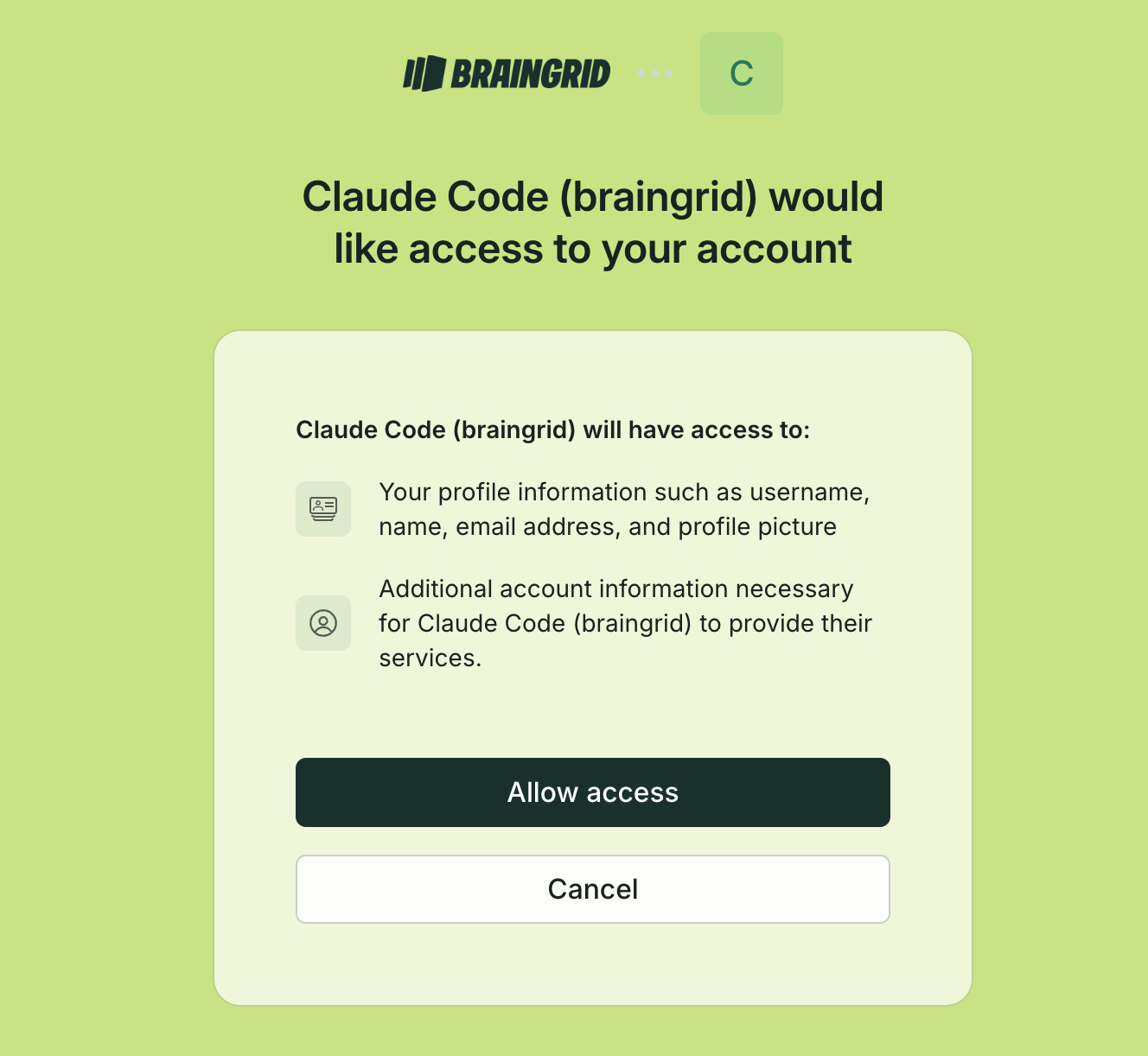
Step 2: Authenticate (if prompted)
BrainGrid uses OAuth. Claude Code will open a browser to complete login.
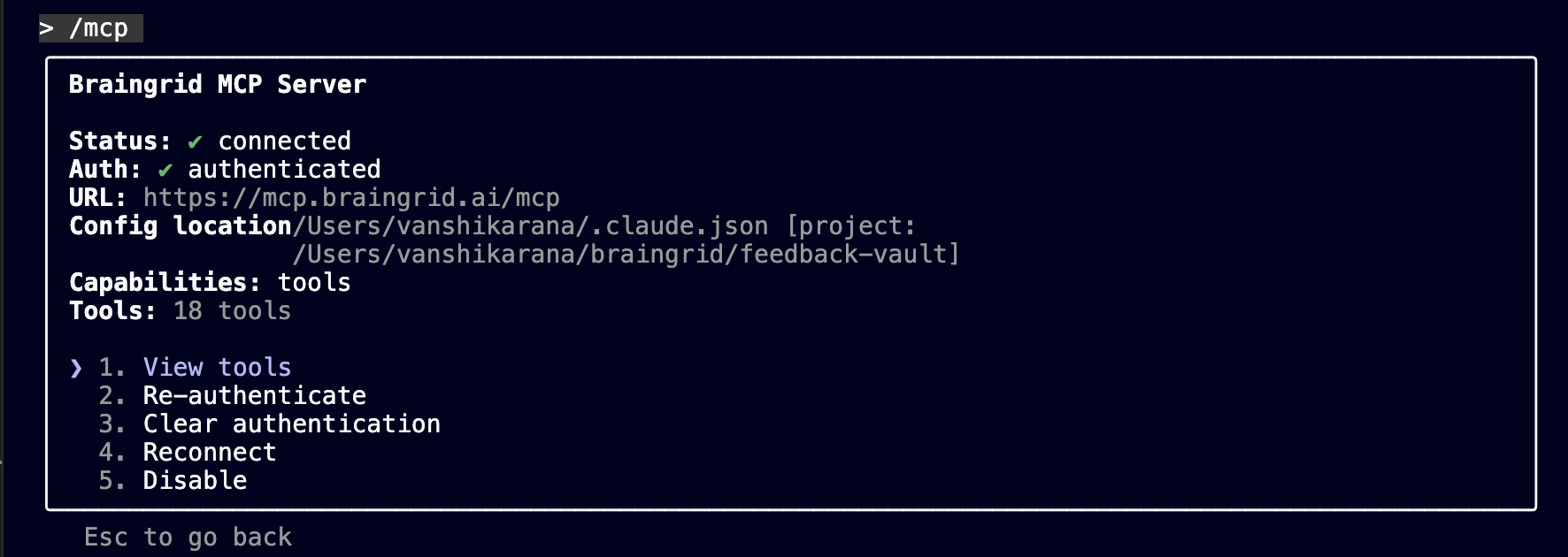
Step 3: Verify the connection
Inside Claude Code, run:
1/mcp
You should see braingrid listed as an active server.
Step 4: Test it
Ask Claude Code to list BrainGrid projects or create a sample requirement.
If it returns real data, your MCP setup is working.
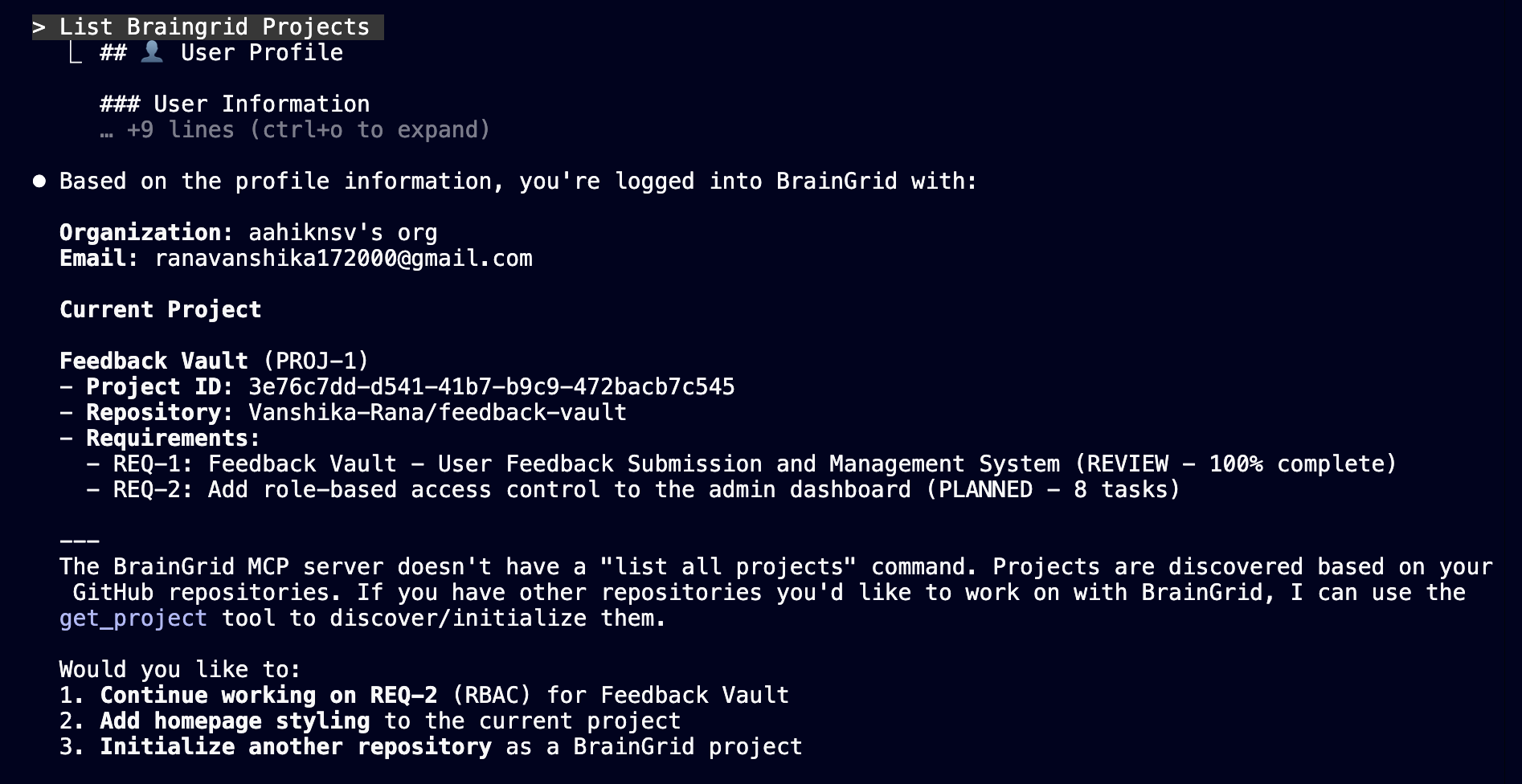
Once you've added one MCP server, the rest follow the same pattern. From here on, Claude Code fetches context on demand — no more manual copy-pasting.
#Troubleshooting Common MCP Issues
If MCP doesn't work on the first try, you're not doing anything wrong.
Most Claude Code MCP issues come down to connectivity, authentication, or output limits. The good news: almost all of them are easy to fix once you know where to look.
#Server Not Connecting
This is the most common setup issue.
Step 1: Check if Claude can see the server
Inside Claude Code, run:
1/mcp
If the server doesn't appear, Claude isn't loading it at all. That means the issue is configuration-level, not runtime.
Step 2: Verify the URL or command
For HTTP-based servers:
- Confirm the URL is correct and reachable
- Try opening it in a browser or via
curl - Check for typos or trailing slashes
For stdio-based servers, re-check the command passed after --.
Step 3: Check network restrictions
VPNs, proxies, and corporate firewalls often block MCP traffic.
Try:
- Temporarily disabling your VPN
- Switching networks
- Allowlisting the MCP server domain
This is especially common with hosted MCP servers.
Step 4: Increase the timeout (for slow startups)
Some servers take longer to respond, especially on first run.
export MCP_TIMEOUT=10000
#Authentication Failures
Authentication issues are the most common reason MCP “half works” — where the server appears but returns no real data.
OAuth-based servers (e.g. BrainGrid)
- Run
/mcpin Claude Code - Click the server name
- Complete the browser login flow
If you recently changed accounts or permissions, re-authentication is often required.
Common BrainGrid fix: Disable and re-enable the server to trigger a fresh auth flow.
API key–based servers
- Confirm environment variables are set
- Restart Claude Code after exporting variables
- Avoid hardcoding secrets in
.mcp.json
Quick check:
1echo $GITHUB_TOKEN
If it prints nothing, Claude can't use it either.
#Output Truncated Errors
Partial responses usually mean you've hit an output limit.
Increase the limit
1export MAX_MCP_OUTPUT_TOKENS=50000
Notes:
- Warning threshold: ~10,000 tokens
- Default hard limit: ~25,000 tokens
Reduce request size
MCP works best with focused queries, not large dumps.
- Filter rows
- Limit fields
- Ask for summaries instead of raw data
Smaller requests are faster and more reliable.
#Stdio Server Won't Start
This mostly affects local tools — especially on Windows.
Windows fix (very common)
Wrap npx commands like this:
1cmd /c npx -y <server-name>
Without this, Claude Code may fail silently.
Other checks
-
Confirm the package exists:
1npx <server-name> --help -
Verify required environment variables
-
Ensure Node.js is installed and in your
PATH
If the process exits immediately, it's usually a startup or environment issue.
#BrainGrid MCP + Claude Code: Spec-Driven Development
Once you have MCP working in Claude Code, the next real unlock is spec-driven development — and this is where BrainGrid MCP truly shines.
Instead of prompting Claude with half-formed ideas and fixing things as context inevitably gets lost, BrainGrid gives your AI a persistent map: requirements, acceptance criteria, and tasks that stay consistent across your entire coding session.
This is the shift from “AI helping you code” to “AI helping you build.”
#6.1 Why Spec-Driven Development Matters
Most AI coding breaks down for one simple reason:
There's no shared source of truth.
When you code without a spec:
- Context gets lost across prompts
- Requirements drift mid-implementation
- You end up re-explaining decisions and reworking code
Spec-driven development flips this completely.
You define what you want once, in a structured format, and let the AI reference that spec throughout the build — across files, tasks, and iterations.
Think of it as:
AI coding with a map, instead of coding blind.
If you want a deeper dive into the philosophy behind this, we've written more about it here: 👉 Spec-Driven Development: Ship Reliable Software Faster with AI
#6.2 Setting Up BrainGrid MCP
Before jumping into Claude Code, you'll need to set up BrainGrid itself.
Step 1: Create a BrainGrid account
- Go to BrainGrid AI Dashboard and sign up
- Connect your GitHub account
- Select the repository you're actively coding in
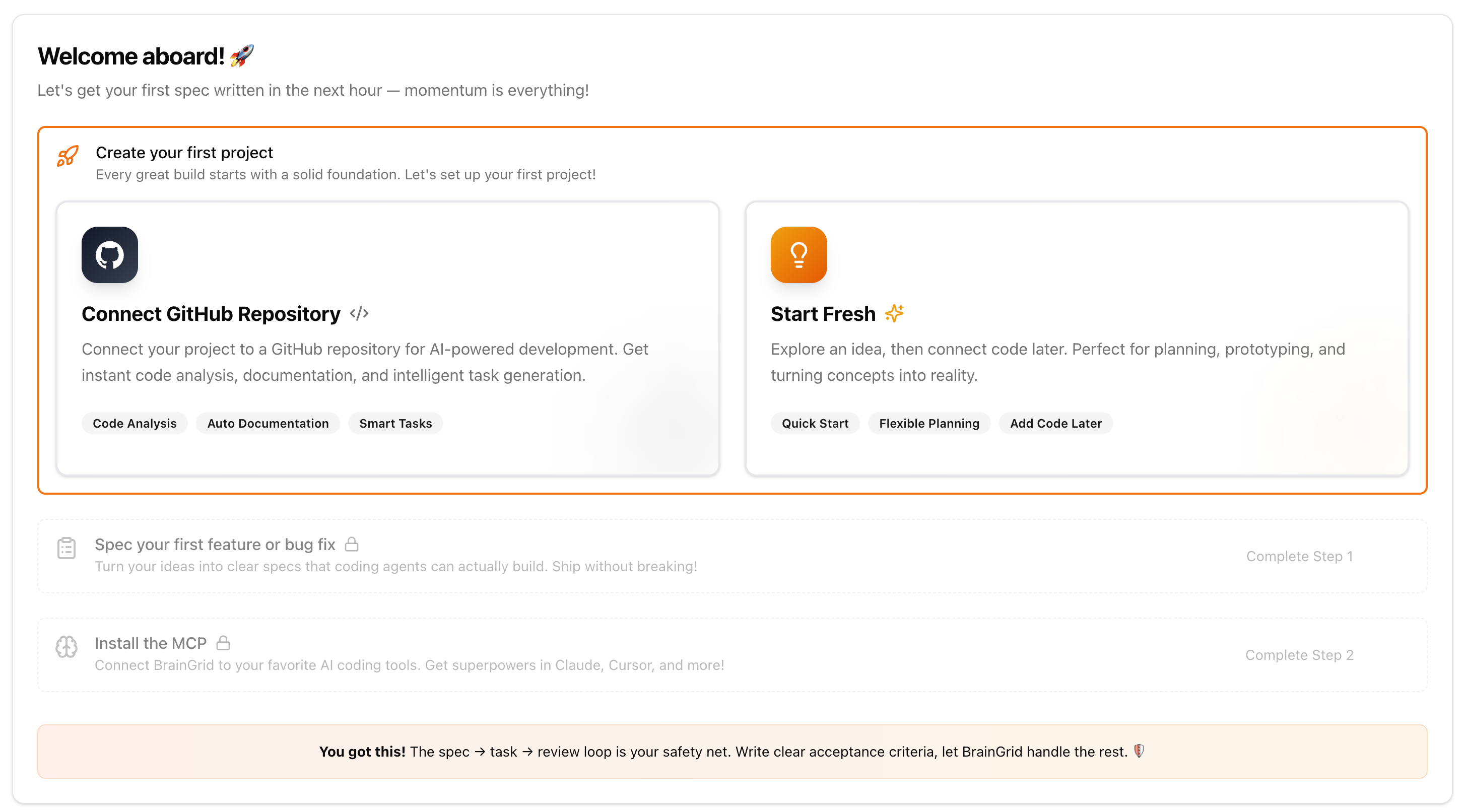 This allows BrainGrid to understand where the work is happening and keep requirements tied to real codebases — not abstract ideas.
Step 2: Connect BrainGrid to Claude Code via MCP For a visual walkthrough, refer to the Quick Setup: BrainGrid MCP (End-to-End) section above.
Add the BrainGrid MCP server to Claude Code:
1claude mcp add –transport http braingrid https://mcp.braingrid.ai
Once added:
- Run
/mcpinside Claude Code - Verify that braingrid appears in the connected servers list
- BrainGrid will prompt you to authorize via OAuth
- Complete the authorization flow
Claude Code and BrainGrid are fully connected.
#6.3 BrainGrid MCP Workflow
BrainGrid MCP follows a simple three-phase spec-driven workflow. You'll often see this workflow described using shorthand like specify → break down → build — not as rigid commands, but as a way to describe how intent flows through the system.
1: Turn an Idea into a Requirement
Start with a rough idea, directly in Claude Code:
“Create a requirement in BrainGrid to Add role-based access control to the admin dashboard”
Claude, powered by BrainGrid MCP, converts this intent into a structured requirement with:
- Clear description
- Acceptance criteria
- Constraints and assumptions
This is no longer a vague prompt. It becomes your product requirements document — a single source of truth.
Once done, head over to the BrainGrid AI Dashboard. There, you can further refine it by working with the BrainGrid requirements agent. You can give instructions like:
"Help me refine this requirement and ask any clarifying questions."
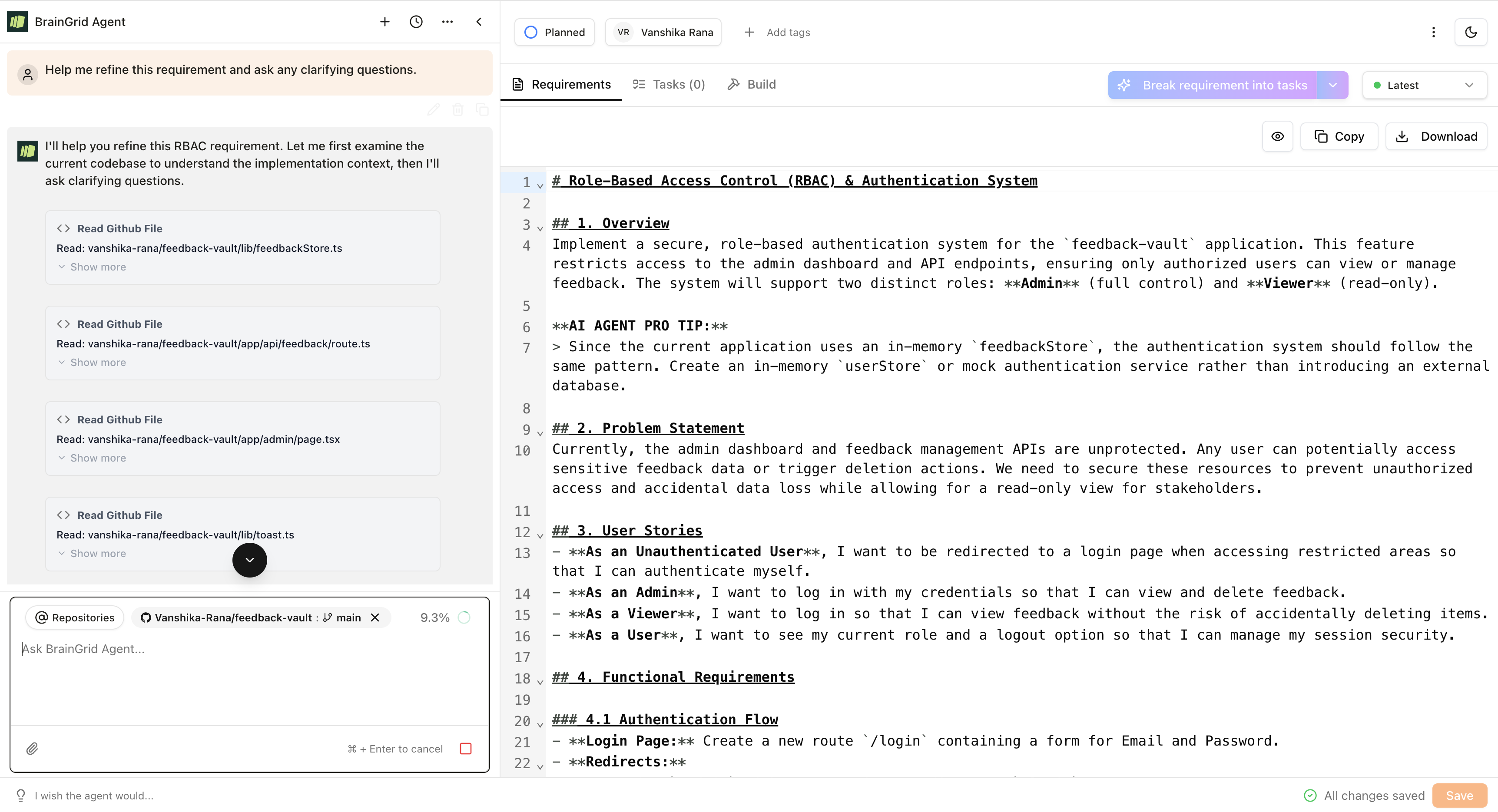
This helps improve clarity, fill in gaps, and capture details you might have missed.
2: Break the Requirement into Tasks
Once the requirement exists (for example, REQ-123), it's refined and broken down — typically via the BrainGrid app — into concrete, implementable tasks.
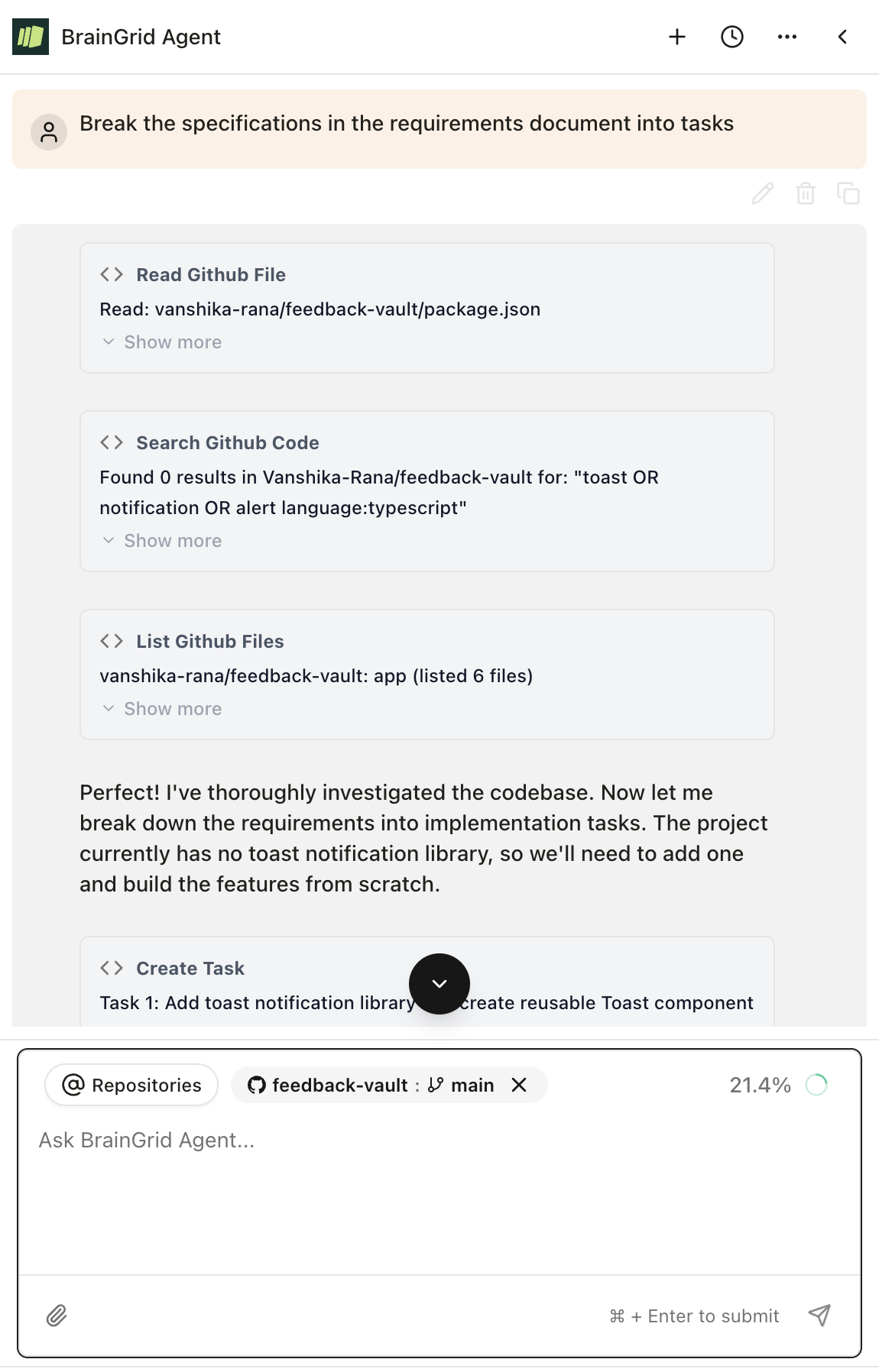
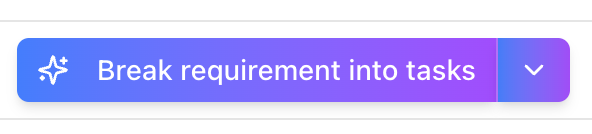
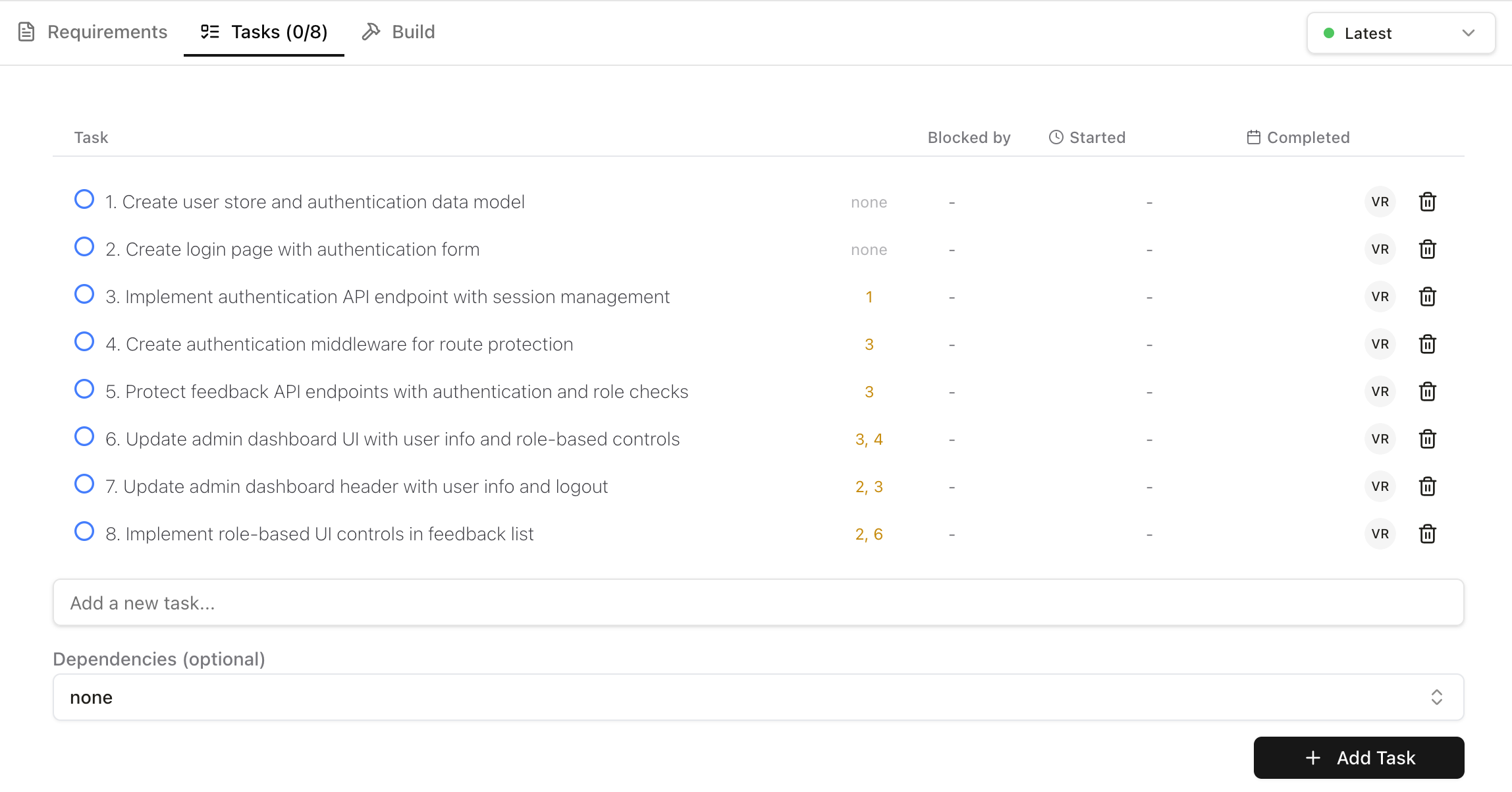
From the dashboard, click “Break down requirement into tasks.” BrainGrid will generate a list of actionable tasks tied directly to the requirement.
Each task is scoped tightly enough for focused AI-assisted implementation, without guesswork or oversized prompts. You can fetch any task directly from Claude Code.
3: Build with Full Context
Now comes the real magic.
Pull everything into Claude Code and run:
1Build REQ-123
This builds the full requirement with all its context loaded. Claude now has access to:
- The original requirement
- Acceptance criteria
- A complete task list
- Review Acceptance Criteria
Each task becomes a high-signal, guided coding session instead of a guessing game.
#Why This Changes Everything
With BrainGrid MCP, Claude Code isn't just responding to prompts.
It's working against a living spec.
That means:
- Less rework
- Fewer clarification loops
- More predictable output
- Cleaner handoff between planning and implementation
This is the difference between AI-assisted coding and AI-driven development.
👉 Try BrainGrid for free at braingrid.ai and experience spec-driven development inside Claude Code.
#Frequently Asked Questions
#Does Claude Code support MCP prompts?
Yes. Claude Code fully supports the Model Context Protocol (MCP) specification, including both tools and resources exposed by MCP servers. This allows durable, reusable context across an entire coding session.
#What is the MCP configuration format?
Claude Code uses JSON-based MCP configuration files. Each server defines a transport (http or stdio), a URL or command, and optional headers or environment variables for auth.
#Does MCP use HTTP?
Yes. MCP supports multiple transports:
- HTTP (recommended)
- stdio (for local tools)
- SSE (deprecated)
Most hosted MCP servers, including BrainGrid, use HTTP.
#How is Claude Code MCP different from Cursor MCP?
Both implement the same MCP standard. The difference is setup: Claude Code uses CLI commands and config files, while Cursor uses a settings UI. MCP servers work across both.
#Start Connecting Your Development Stack
MCP helps Claude Code work with your existing development tools — so it understands your code, your data, and what you're trying to build.
You don't need to connect everything at once. Start small with two or three MCP servers that map directly to how you already work:
- GitHub for code, pull requests, and issues
- Your database or backend service for live schemas and data
- BrainGrid for structured requirements and specs
This is where the real shift happens.
With a spec-driven workflow, you stop re-explaining decisions and start building with AI that stays aligned — from the first idea to the final commit.
Teams that ship faster aren't writing more code. They're giving their AI better context.
MCP is how you do that.
Keep Reading

Ready to build without the back-and-forth?
Turn messy thoughts into engineering-grade prompts that coding agents can nail the first time.
Re-love coding with AI