
How to Add MCP Servers to Gemini CLI (Step-by-Step)
Set up MCP servers in Gemini CLI in 5 minutes. Covers settings.json config, BrainGrid MCP, Supabase, and troubleshooting common errors.
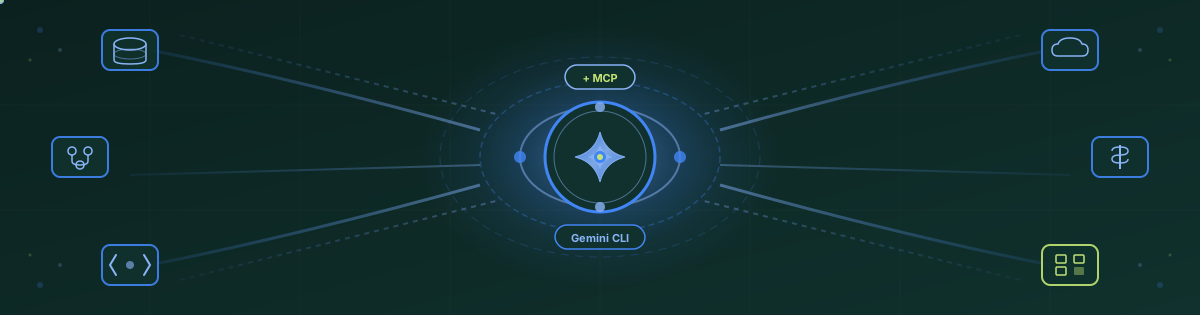
I've been using Gemini CLI MCP servers for a while now, and they've completely changed how I build with AI. Instead of copying schemas into every prompt and fixing placeholder code, Gemini connects directly to my databases, APIs, and specifications through the Model Context Protocol.
In this guide, I'll walk you through everything you need to configure MCP servers in Gemini CLI. From basic setup to advanced configurations with tools like BrainGrid.
#What is a Gemini CLI MCP Server?
A Gemini CLI MCP server is a bridge between Google's Gemini CLI and external services. MCP (Model Context Protocol) gives Gemini context beyond your local files. Think databases, APIs, cloud services, and project specifications.
When you connect a database MCP server to Gemini CLI, it can examine your actual tables and columns. The SQL it generates uses real schema names, not placeholders. When you connect BrainGrid MCP, Gemini reads your requirements and acceptance criteria directly, building features that match your specifications.
What Gemini CLI MCP servers enable:
- Query live database schemas
- Fetch real API responses
- Read structured specifications from BrainGrid
- Access GitHub issues, PRs, and commit history
- Connect to cloud infrastructure (AWS, GCP)
Here's how the flow works:
Loading diagram...
MCP transforms Gemini from a code generator into a context-aware development partner.
#Why Gemini CLI MCP Servers Matter for Developers
Without MCP servers, every Gemini CLI session starts from scratch. You paste schemas, explain API structures, and fix the same boilerplate over and over. That copy-paste cycle kills momentum.
With Gemini CLI MCP servers configured:
- Database queries use your actual schema
- API code handles real response formats
- Specifications stay consistent across sessions
- Less manual fixing, faster shipping
The pattern applies across your entire stack. A GitHub MCP server gives Gemini context about open issues. A Stripe MCP server lets it understand billing flows. BrainGrid MCP provides structured requirements instead of vague prompts.
When Gemini has direct access to your systems, the code it generates works the first time.
#How to Set Up Gemini CLI MCP Servers
Gemini CLI supports MCP server configuration through two methods. You can use CLI commands for quick setup, or JSON configuration files for persistent settings.
#Adding Gemini MCP Servers via CLI
The gemini mcp add command configures MCP servers without editing files manually.
Add a remote HTTP MCP server (like BrainGrid):
1gemini mcp add --transport http braingrid https://mcp.braingrid.ai/mcp
Add a remote SSE MCP server:
1gemini mcp add --transport sse my-sse-server https://api.example.com/sse
Add a local stdio MCP server:
1gemini mcp add my-local-server python server.py -- --port 8080
The -- separates Gemini CLI flags from arguments passed to the MCP server process.
Add MCP server with environment variables:
1gemini mcp add -e GITHUB_TOKEN=$GITHUB_TOKEN github npx -y @modelcontextprotocol/server-github
Add MCP server with custom headers:
1gemini mcp add --transport http --header "Authorization: Bearer $TOKEN" my-api https://api.example.com/mcp
By default, Gemini CLI adds MCP servers to the project config (.gemini/settings.json). Use -s user to add to user config (~/.gemini/settings.json) instead.
#Configuring Gemini MCP Servers in settings.json
For persistent Gemini CLI MCP configuration, edit your settings.json file directly.
Gemini CLI MCP config file locations:
- User config:
~/.gemini/settings.json - Project config:
.gemini/settings.json
Here's an example settings.json with multiple MCP servers configured:
1{
2  "mcpServers": {
3    "braingrid": {
4      "httpUrl": "https://mcp.braingrid.ai/mcp"
5    },
6    "github": {
7      "command": "npx",
8      "args": ["-y", "@modelcontextprotocol/server-github"],
9      "env": {
10        "GITHUB_TOKEN": "$GITHUB_TOKEN"
11      }
12    },
13    "postgres": {
14      "command": "npx",
15      "args": ["-y", "@modelcontextprotocol/server-postgres"],
16      "env": {
17        "DATABASE_URL": "$DATABASE_URL"
18      }
19    }
20  }
21}
#Gemini CLI MCP Server Configuration Format
Each MCP server entry uses specific properties that determine how Gemini CLI connects.
Transport is determined by property name:
httpUrlfor HTTP streaming transport (remote hosted MCP servers)urlfor SSE transport (Server-Sent Events MCP servers)commandfor Stdio transport (local subprocess MCP servers)
Loading diagram...
Gemini CLI MCP configuration properties:
| Property | Description |
|---|---|
httpUrl | HTTP streaming endpoint URL for remote MCP servers |
url | SSE endpoint URL for Server-Sent Events MCP servers |
command | Executable path for local MCP servers |
args | Arguments passed to the MCP server command |
env | Environment variables ($VAR or ${VAR} syntax) |
headers | Custom HTTP headers for remote MCP servers |
cwd | Working directory for local MCP servers |
timeout | Request timeout in milliseconds (default: 600,000) |
trust | Skip confirmation prompts when true |
includeTools | Allowlist of MCP tool names to enable |
excludeTools | Blocklist of MCP tool names to disable |
Example Gemini MCP server with headers and timeout:
1{
2  "mcpServers": {
3    "authenticated-api": {
4      "httpUrl": "https://api.example.com/mcp",
5      "headers": {
6        "Authorization": "Bearer $API_TOKEN",
7        "X-Custom-Header": "value"
8      },
9      "timeout": 30000
10    }
11  }
12}
#Managing Gemini CLI MCP Servers
List all configured MCP servers:
1gemini mcp list
Remove an MCP server:
1gemini mcp remove braingrid
Disable MCP server temporarily:
1gemini mcp disable braingrid
2gemini mcp enable braingrid
Check MCP server status inside Gemini CLI:
1/mcp
This displays connection status, available tools, and any errors for each configured MCP server.
#Best Gemini CLI MCP Servers for Developers
Here are the MCP servers I find most useful with Gemini CLI:
-
Database MCP servers: PostgreSQL, MySQL, MongoDB, Redis, Supabase, Neon. Gemini queries schemas, understands relationships, and generates accurate SQL.
-
GitHub MCP server: Read PRs, inspect issues, understand commit history. Repository context that influences code but doesn't live in local files.
-
Cloud platform MCP servers: AWS, GCP, Heroku. Access deployment configs, logs, and environment-specific behavior.
-
Stripe MCP server: Visibility into billing flows, subscriptions, webhooks. Debug payment logic with real context.
-
Playwright MCP server: Browser automation and testing. Gemini runs and validates UI interactions.
-
BrainGrid MCP server: Turns vague ideas into structured requirements, then breaks them into tasks. Gemini reads these specs and builds exactly what you specified.
#BrainGrid MCP Server: Spec-Driven Development in Gemini CLI
BrainGrid is an AI product manager that helps developers plan, specify, and build features. I've noticed most developers (myself included) jump straight into prompting before having a clear picture of what we're building. Running initial ideas through BrainGrid turns them into structured requirements.
Say you want to add user authentication. BrainGrid analyzes your codebase and asks clarifying questions. Which auth providers? What session handling? How to manage password resets? Your answers become a requirements document with explicit acceptance criteria. That's spec-driven development. BrainGrid then breaks the requirement into implementation tasks.
Loading diagram...
The BrainGrid MCP server lets Gemini CLI access these requirements directly. Instead of copying specs into prompts, Gemini reads the full context and builds the feature precisely.
#Setting Up BrainGrid MCP Server in Gemini CLI
Step 1: Create a BrainGrid account at app.braingrid.ai and connect your GitHub repository.
Step 2: Add BrainGrid MCP server to Gemini CLI:
1gemini mcp add --transport http braingrid https://mcp.braingrid.ai/mcp
Or add to your settings.json:
1{
2  "mcpServers": {
3    "braingrid": {
4      "httpUrl": "https://mcp.braingrid.ai/mcp"
5    }
6  }
7}
Step 3: Run /mcp in Gemini CLI. On first connection, authorize BrainGrid via the browser popup.
#Using BrainGrid MCP with Gemini CLI
Create a requirement in BrainGrid:
Create a BrainGrid requirement for adding role-based access control
View existing BrainGrid requirements:
Show me REQ-142 from BrainGrid
Build from a BrainGrid requirement:
Build REQ-142
Gemini fetches the full spec including description, acceptance criteria, and technical constraints. It implements with that context. It knows what "done" looks like because the BrainGrid requirement defines it.
The result: Gemini builds exactly what you specified, with less cleanup afterward.
#Troubleshooting Gemini CLI MCP Server Issues
MCP server shows DISCONNECTED:
Check the URL for typos. Test connectivity with curl https://mcp.braingrid.ai/mcp. VPNs and firewalls can block MCP traffic.
OAuth popup doesn't appear:
Gemini CLI MCP OAuth requires a local browser. It won't work in headless servers or SSH sessions. Authenticate on a machine with a browser, then copy ~/.gemini/mcp-oauth-tokens.json to the target machine.
MCP tools not showing up:
Run /mcp to check connection status. Verify includeTools isn't filtering them out. Complete OAuth authorization if required.
MCP server timeout errors: Increase the timeout in your Gemini CLI MCP configuration:
1{
2  "mcpServers": {
3    "slow-server": {
4      "httpUrl": "https://api.example.com/mcp",
5      "timeout": 120000
6    }
7  }
8}
Stdio MCP server won't start on Windows:
Wrap commands with cmd:
1{
2  "mcpServers": {
3    "windows-server": {
4      "command": "cmd",
5      "args": ["/c", "npx", "-y", "my-mcp-server"]
6    }
7  }
8}
Changes not taking effect:
Restart Gemini CLI after modifying settings.json or adding new MCP servers.
#Start Building Faster with Gemini CLI MCP Servers
Once I started using MCP servers with Gemini CLI, I stopped thinking of AI as a code generator. It became something closer to a teammate that actually understands my project.
The shift is simple but powerful. Instead of explaining your database schema every session, Gemini just knows it. Instead of describing what you want to build, Gemini reads the spec you already wrote. Instead of fixing placeholder code, you review working implementations.
MCP servers remove the friction between what Gemini can do and what it actually knows about your project. That's the unlock.
Start with one server. Connect your database, or GitHub, or whatever tool you context-switch to most often. See how it changes your workflow. Then add more as you need them.
#Take It Further with BrainGrid
Here's what I've learned: the quality of AI output depends entirely on the quality of your input. Vague prompts produce vague code. Detailed specs produce precise implementations.
BrainGrid solves this at the source. It's an AI product manager that turns rough ideas into structured requirements before you start building. You describe what you want, BrainGrid asks clarifying questions, and you end up with a spec that has clear acceptance criteria.
The BrainGrid MCP server connects these specs directly to Gemini CLI. No copying. No context loss. Gemini reads your requirements and builds exactly what you specified.
If you're serious about shipping faster with AI, start with better specs.
#Frequently Asked Questions About Gemini CLI MCP Servers
#What is a Gemini CLI MCP server?
A Gemini CLI MCP server is a service that connects to Google's Gemini CLI through the Model Context Protocol (MCP). It gives Gemini context beyond your local codebase. This includes databases, APIs, cloud services, specifications, and any external system relevant to your application.
#How do I add an MCP server to Gemini CLI?
Use gemini mcp add for quick setup, or edit settings.json directly. For example: gemini mcp add --transport http braingrid https://mcp.braingrid.ai/mcp. User config lives at ~/.gemini/settings.json, project config at .gemini/settings.json.
#Where is the Gemini CLI MCP configuration file located?
Gemini CLI stores MCP configuration in two locations:
- User-level:
~/.gemini/settings.json - Project-level:
.gemini/settings.jsonin your repository root
#What MCP servers work with Gemini CLI?
Any MCP server using stdio (local), SSE, or HTTP streaming transport works with Gemini CLI. This includes database servers (PostgreSQL, MySQL), GitHub, cloud platforms (AWS, GCP), and specification tools like BrainGrid.
#How do I connect BrainGrid MCP to Gemini CLI?
Run gemini mcp add --transport http braingrid https://mcp.braingrid.ai/mcp or add {"braingrid": {"httpUrl": "https://mcp.braingrid.ai/mcp"}} to your mcpServers config. Authorize via browser on first connection.
#How does Gemini CLI MCP compare to Cursor or Claude Code MCP?
All three support the MCP standard. MCP servers work across all tools. For setup guides, see our Claude Code MCP, Cursor MCP, and Windsurf MCP guides. The main differences are configuration format and CLI commands.
#Why is my Gemini CLI MCP server not connecting?
Run /mcp inside Gemini CLI to check connection status and error messages. Common issues include incorrect URLs, missing OAuth authorization, network restrictions, or timeout settings too low.
#Does Gemini CLI support MCP server authentication?
Yes. Gemini CLI handles OAuth automatically for MCP servers that require it. It opens your browser for authorization and stores tokens at ~/.gemini/mcp-oauth-tokens.json. API key authentication is supported via environment variables in your MCP server config.
#Can I use multiple MCP servers in Gemini CLI?
Yes. Add multiple entries to the mcpServers object in your settings.json. Gemini CLI connects to all configured MCP servers and makes their tools available in your session.
#What is BrainGrid MCP used for?
BrainGrid MCP provides spec-driven development in Gemini CLI. It turns vague feature ideas into structured requirements with acceptance criteria, then breaks them into implementation tasks. Gemini reads these specs directly and builds features that match your specifications precisely.
About the Author
Vanshika Rana is a Developer Advocate and Product Marketer, where she focuses on helping developers understand, adopt, and build with AI-powered engineering tools. With a background spanning frontend engineering, developer relations, and product marketing, she enjoys translating complex systems into clear, practical narratives that resonate with technical audiences.
Want to discuss AI coding workflows or share your experiences? Find me on X or connect on LinkedIn.
Keep Reading

Ready to build without the back-and-forth?
Turn messy thoughts into engineering-grade prompts that coding agents can nail the first time.
Re-love coding with AI