
Claude Code Plan Mode: What's Missing and How to Fix It
Claude Code plan mode is great for analysis but plans vanish between sessions. Here's what's broken and how BrainGrid makes plans persistent and actionable.
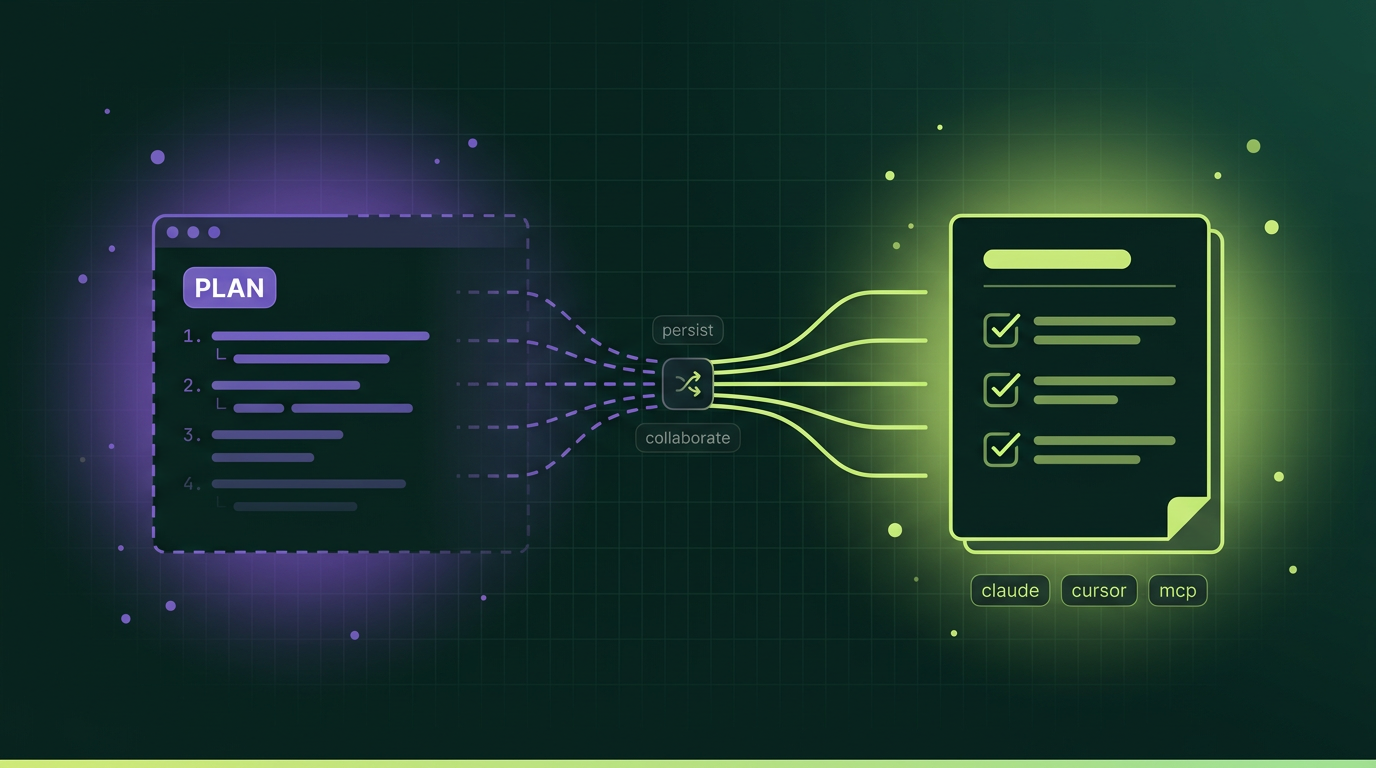
Claude Code's plan mode might be the most underrated feature in any AI coding tool right now. While most developers are racing to generate code faster, plan mode does something counterintuitive: it tells the AI to stop and think before it touches anything.
That instinct — separate the thinking from the doing — is exactly right. And if you're not using plan mode yet, you should be.
But there's a gap between what plan mode gives you and what you actually need when you're building something real. Let's talk about both.
#What Is Plan Mode?
Plan mode is a read-only permission setting in Claude Code. When you activate it, Claude can analyze your entire codebase — read files, search for patterns, trace dependencies — but it cannot modify anything. No file edits. No shell commands. No side effects.
You activate it by pressing Shift+Tab twice in a Claude Code session, or by starting with claude --permission-mode plan. There's also a /plan slash command.
Loading diagram...
Once in plan mode, you describe what you want to build. Claude reads the relevant code, asks clarifying questions, and produces a structured plan — often with a numbered task list. You review the plan, ask follow-ups, request changes. When you're satisfied, you exit plan mode and Claude executes what you agreed on.
The task lists Claude creates in plan mode even survive context compaction, which means they persist through long sessions where earlier conversation history gets trimmed.
#When Plan Mode Works Well
Plan mode is genuinely useful in specific situations:
- Exploring unfamiliar code. Just joined a project? Let Claude give you a guided tour of the architecture without the risk of it accidentally breaking something while you're still learning where things live.
- Complex multi-file changes. If a task touches ten or more files, starting in plan mode lets Claude map the scope, identify dependencies, and surface edge cases before committing to an approach. A few minutes of planning saves hours of backtracking.
- Risky refactors. Changing authentication? Restructuring the database layer? Migrating an API? These are situations where you want to see the full picture before anything moves.
- Getting a second opinion. Not sure how to approach something? Plan mode gives you Claude's analysis without it immediately jumping into implementation.
The underlying idea is sound: think first, execute later. Every experienced developer already does this naturally. Plan mode formalizes it for the AI.
#Where Plan Mode Breaks Down
Here's the honest part. Plan mode works well within a single session. The problems start when you zoom out.
#Plans are session-scoped
Your plan lives inside a Claude Code conversation. When the session ends, the plan goes with it. Task lists survive context compaction within a session, but across sessions? You're starting fresh. Stale plan context can bleed between sessions and confuse the agent about which task it's supposed to be working on.
If you're building a feature over multiple days — which is most features — the plan you carefully crafted on Monday is gone by Wednesday.
#Plans aren't collaborative
Your plan lives in your terminal. Your co-founder can't see it. Your designer can't comment on it. Your team can't review the approach before you start building. There's no shared artifact. There's no approval step outside of your own judgment.
For solo builders, this is manageable. For teams, it's a real gap.
#Plans lack domain context
Plan mode reads code. It's good at understanding what your codebase does today. But it doesn't know why you built it that way. It doesn't know your business rules, your customer constraints, or the regulatory requirements your product needs to satisfy.
You can type all of that into the conversation manually, every session. But that's exactly the kind of repetitive context-loading that erodes the productivity gains the tool is supposed to provide.
#Plans are tool-locked
A plan created in Claude Code stays in Claude Code. If you want to hand part of the work to Cursor, or run it through a different agent, or use an MCP-connected tool, you're copy-pasting and re-explaining. The plan has no portable format.
#Plans don't track execution
Once you exit plan mode and start building, the connection between the plan and what actually happened is informal. There's no structured record of which steps were completed, which were skipped, which led to unexpected decisions. If something breaks three days later, you're reconstructing from memory.
Loading diagram...
None of these are criticisms of plan mode itself. It does what it's designed to do. The issue is that planning, for real software, requires more than a single-session, single-tool, single-person conversation.
#What's Actually Needed
The gap isn't "better plan mode." The gap is a planning layer that sits above any individual coding tool and provides:
- Persistence — Plans that survive sessions, days, weeks.
- Collaboration — Plans that a team can review, refine, and approve.
- Domain context — Plans that capture business rules and product constraints, not just code structure.
- Portability — Plans that work with any agent, not just the one that created them.
- Execution tracking — A structured record of what the agent actually did against the plan.
This is the problem spec-driven development was designed to solve. And it's why we built BrainGrid.
#How BrainGrid Fills the Gap
BrainGrid isn't a replacement for plan mode. It's the layer that makes plan mode's output durable and useful beyond a single session.
Here's how BrainGrid addresses each plan mode limitation:
| Plan Mode Limitation | BrainGrid's Approach |
|---|---|
| Plans vanish between sessions | Requirements persist in BrainGrid — they're permanent artifacts |
| Plans live in one person's terminal | Teams can review, refine, and comment on requirements together |
| Plans lack business context | The specify flow captures domain knowledge through clarifying questions |
| Plans are locked to Claude Code | The Build tab works with Claude Code, Cursor, MCP, or copy-paste |
| No execution tracking | Tasks are created by the agent as it builds — a structured record of decisions and progress |
The specify flow works like a senior tech lead interviewing you about what you want to build. It asks about edge cases, acceptance criteria, constraints, and context. The output is a complete requirement — not a prompt, not a plan that disappears, but a durable specification that any agent can execute against.
When you're ready to build, the Build tab gives you the requirement formatted for your tool of choice. Claude Code gets a slash command. Cursor gets a prompt. MCP-connected agents get structured context. The requirement is the same everywhere.
As the agent builds, it creates tasks in BrainGrid, documenting each step. If you need to pick up tomorrow, the context is there. If a teammate needs to review what happened, it's tracked.
#The Workflow: Plan Mode + BrainGrid Together
This isn't an either/or choice. The best workflow uses both.
Loading diagram...
- Specify in BrainGrid. Describe what you want to build. The planning agent refines it into a complete requirement with acceptance criteria, edge cases, and technical context. This is your persistent plan — the one that doesn't disappear.
- Open the Build tab. Pick your coding agent. BrainGrid formats the requirement for whichever tool you're using.
- Use plan mode for in-session exploration. When you're in Claude Code and need to explore how a particular part of the codebase works before making changes, switch to plan mode. This is where plan mode shines — tactical, in-session analysis. The strategic plan lives in BrainGrid.
- Build. The agent works against the requirement. As it goes, it logs tasks in BrainGrid.
- Review. When the agent finishes, you've got a PR to review and a complete task history in BrainGrid showing what happened.
#The Bigger Picture
Claude Code's plan mode represents something important: the recognition that AI coding isn't just about generating code faster. Planning matters. Thinking before acting matters. The best vibe coding tools in 2026 all recognize this in different ways.
But planning that lives inside a single session, in a single tool, for a single person — that's a starting point, not a destination.
The shift happening right now in AI-assisted development is from "ask the AI to write code" to "define what you want built and let the agent figure out how." Plan mode is a step in that direction. A persistent, collaborative, tool-agnostic planning layer is the full version.
If you've been using plan mode and finding that your plans keep evaporating, that's not a failure of discipline. It's a missing layer in the stack. That's the layer we're building.
#Frequently Asked Questions
#What is Claude Code plan mode?
Plan mode is a read-only permission setting in Claude Code that lets the AI analyze your codebase and create a structured plan without making any changes. You activate it by pressing Shift+Tab twice in the terminal, or by starting a session with claude --permission-mode plan. You review the plan, then exit plan mode to let Claude execute it. It separates research from implementation.
#How do I activate Claude Code plan mode?
There are three ways to enter plan mode. Press Shift+Tab twice during a Claude Code session to toggle it on. Alternatively, start a session with claude --permission-mode plan to begin in plan mode. You can also use the /plan slash command. To exit plan mode and let Claude start executing, press Shift+Tab once.
#What are the limitations of Claude Code plan mode?
Plan mode has five main limitations. Plans are session-scoped and disappear when the conversation ends. They aren't collaborative — only you can see them. They lack domain context like business rules and product constraints. They're locked to Claude Code and can't be used in other tools. And there's no structured way to track which steps were completed during execution.
#Do I still need plan mode if I use BrainGrid?
Yes. They serve different purposes. BrainGrid handles strategic planning — what you're building, why, and what "done" looks like. Plan mode handles tactical, in-session analysis — how does this specific part of the codebase work, what files need to change, what are the dependencies. Use both.
#Does BrainGrid work with tools other than Claude Code?
Yes. The Build tab supports Claude Code, Cursor, MCP-connected agents, and a copy-paste option for any other tool. The requirement is the same regardless of which agent executes it.
#How is a BrainGrid requirement different from a plan mode plan?
A plan mode plan is a conversation artifact — it lives in your terminal session and fades when the session ends. A BrainGrid requirement is a persistent specification with acceptance criteria, edge cases, designs, and technical context. It survives across sessions, can be shared with teammates, and works with any coding tool.
#Can I use plan mode to explore before specifying a requirement?
Absolutely. If you're unsure about the current state of a codebase, plan mode is a great way to get oriented before you write the requirement in BrainGrid. Use plan mode for discovery, then capture what you learned in a BrainGrid requirement.
Building with AI coding agents and want plans that actually persist? Try BrainGrid — specify your first requirement and see the difference.
About the Author
Vanshika Rana is a Developer Advocate and Product Marketer, where she focuses on helping developers understand, adopt, and build with AI-powered engineering tools. With a background spanning frontend engineering, developer relations, and product marketing, she enjoys translating complex systems into clear, practical narratives that resonate with technical audiences.
Want to discuss AI coding workflows or share your experiences? Find me on X or connect on LinkedIn.
Keep Reading


Ready to build without the back-and-forth?
Turn messy thoughts into engineering-grade prompts that coding agents can nail the first time.
Re-love coding with AI